
Yes, you can duplicate a page in WordPress, but there is no button for it out of the box. You have to add one. I hit this the first time I built a site with five landing pages that shared the same layout, and I really did not want to rebuild that layout five times.
In this post, you will learn how to clone any page or post in one click using a free plugin called Admin and Site Enhancements, or ASE for short. You will also learn what actually gets copied, what does not, and how to duplicate a page in WordPress when Elementor is doing the design work.
This is a dashboard tutorial, so most of it is clicking rather than coding. There is one command line method at the end for anyone who lives in the terminal.
Why does WordPress not have a duplicate button?
WordPress core has never shipped one. You get “Add New”, you get Quick Edit, and that is it. So when people search “How do I clone a page in WordPress”, they usually end up doing the manual thing first.
Here is the mistake I want you to avoid. Opening the page, selecting all the blocks, copying them, and pasting them into a new page looks like it works. Then you notice the featured image is gone, the page template reset to default, the parent page is missing, and your SEO title and meta description did not come along. All of that lives in post meta, not in the block content, so copy and paste leaves it behind.
A proper duplicate copies the content plus the meta. That is why a plugin is the right call here.
Step 1: Install the ASE plugin
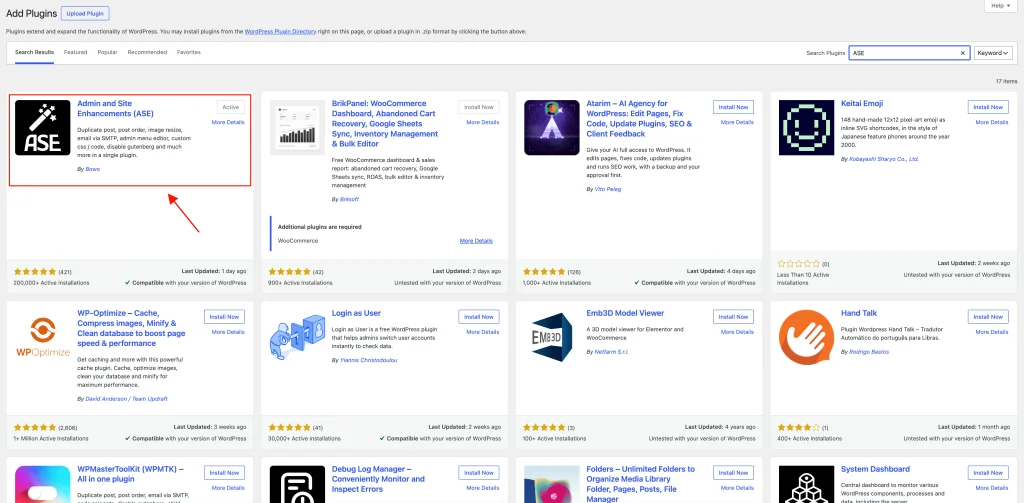
ASE is a free plugin that bundles a lot of small admin features into one place, and content duplication is one of them.
For example, you can see:
- Go to Plugins, then Add New in your WordPress dashboard.
- Search for Admin and Site Enhancements.
- Click Install Now, then Activate.
You can also grab it directly from the ASE plugin page on WordPress.org if you prefer uploading the zip yourself.
I like this one because it replaced three separate plugins on my sites. Duplication, media replacement, and SVG uploads were all single-purpose plugins before. Now they are toggles inside one plugin, and the ones you leave off do not load anything.
Step 2: Turn on Content Duplication
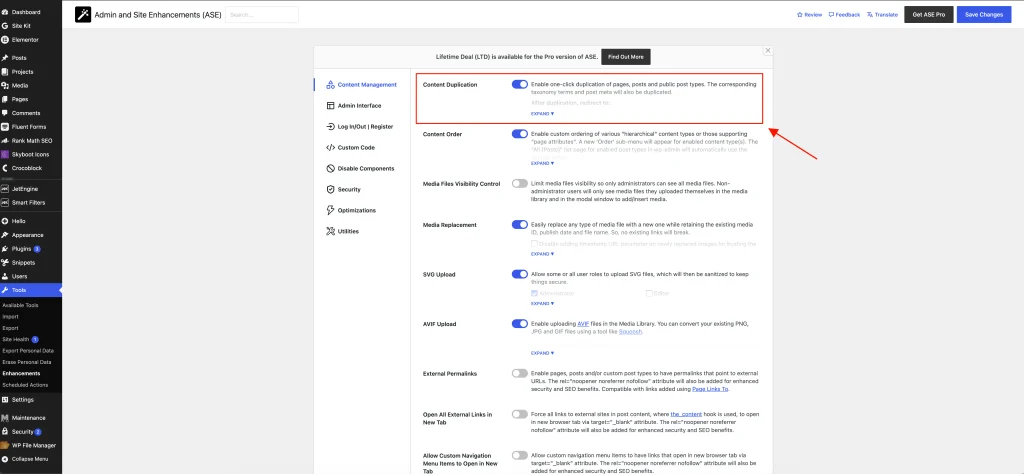
Installing the plugin is not enough. Every ASE feature is a module, and modules are off until you switch them on.
For example, you can see:
- Go to Tools, then Enhancements.
- Open the Content Management tab.
- Find the module called Content Duplication.
- Flip the toggle on.
- Scroll down and click Save Changes.
That is the whole setup. If you are curious about the other 50 or so modules sitting in there, the ASE features page lists all of them with screenshots.
One small note. The toggle does nothing visible until you save, so do not go looking for a Duplicate link before you hit that button. I have done it and spent two minutes confused.
Step 3: Duplicate the page
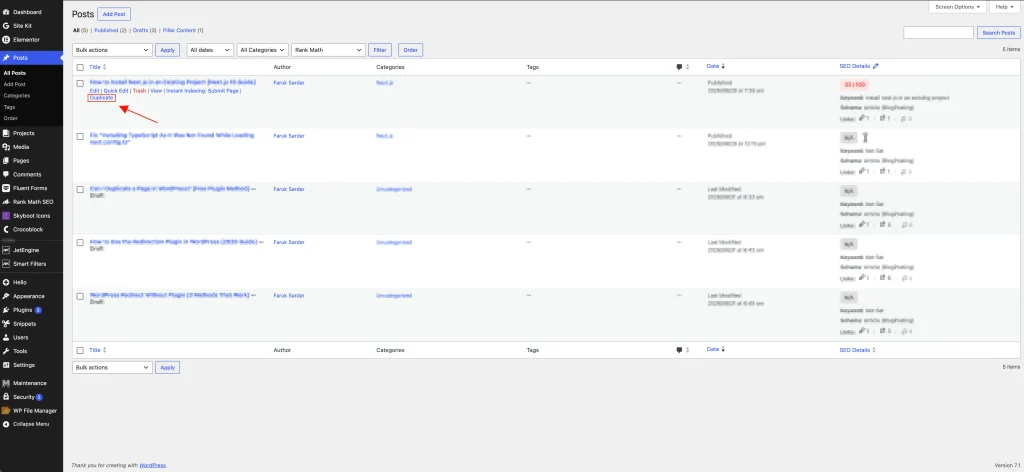
Now the button exists.
For example, you can see:
- Go to Pages, then All Pages.
- Hover over the page you want to copy.
- Click Duplicate in the row of links under the title.
The copy is created as a draft, so nothing goes live by accident. Open it, rename it, change the slug, and publish when you are ready. The original page is untouched.
The same link shows up on Posts and on any public custom post type, so this covers posts, services, projects, testimonials, and anything else your theme registered. ASE also puts a duplication link in the admin bar, which is handy when you are already viewing the page on the frontend and decide you want a copy of it.
WooCommerce products are the one exception. WooCommerce ships its own Duplicate link for products, so ASE stays out of the way there, and you use the native one.
What gets copied and what does not
This is the part people ask about after the fact, so let me put it before you publish something odd.
Copied:
- The page content, blocks and all.
- The taxonomy terms, so categories and tags come with it.
- The post meta, which is where the featured image, page template, page builder layout, and SEO plugin fields live.
Not copied:
- The published status. You get a draft.
- Comments on the original.
- The URL slug, since two pages cannot share one.
That third point matters more than it sounds. If you duplicate a page and publish both versions with near identical content, you now have two pages competing for the same keyword. Either keep the copy as a draft while you work on it, or change the content enough that it stands on its own.
Can you duplicate a page in WordPress Elementor?
Yes, and there are two ways to do it depending on what you are after.
The first way is the one you just set up. ASE copies post meta, and Elementor stores its entire layout in post meta, so a duplicated page opens in Elementor with the design intact. No rebuilding, no template juggling. This is what I use for a quick copy of a landing page.
The second way is Elementor’s own template system, and it is the better choice when you want to reuse a layout many times instead of once.
For example, you can see:
- Open the page with Elementor.
- Click the arrow next to the Publish or Update button.
- Choose Save as Template and give it a name.
- Create a new page, open it in Elementor, click the folder icon, and insert the template from My Templates.
Elementor documents this in their help center under duplicating an Elementor page and creating templates.
There is also a right-click option called Copy All Content inside the editor, which copies every section on the canvas so you can paste it into another page. It moves the design, not the page settings, so the featured image and SEO fields stay behind. Fine for a one-time layout copy, not great as your default habit.
The command line way
If you manage the site over SSH and you already have WP CLI installed, you can clone a page without touching the dashboard at all.
bash
# 128 is the ID of the page you want to clone
wp post create \
  --post_type=page \
  --post_status=draft \
  --post_title="Landing Page Copy" \
--post_content="$(wp post get 128 --field=content)"What I did there: wp post get 128 --field=content reads the raw content of the existing page, and the surrounding wp post create writes it into a brand new draft page. The page ID is the number you see in the edit screen URL.
Be aware this copies content only. Post meta stays behind, so an Elementor page cloned this way opens empty in the editor. For meta heavy pages, stick with the plugin. I use this one mainly for plain text pages during a migration, or inside a script that scaffolds a bunch of similar pages at once.
Which method should you use?
My recommendation for almost every site is the ASE plugin. It is free, the duplication module is a single toggle, and it copies the meta that the manual methods drop. If you already have a duplication plugin you like, keep it. There is no prize for switching. But if you are about to install a single purpose plugin just to get one button, ASE gives you that button plus a pile of other useful modules for the same install.
Use Elementor templates when the layout is something you will reuse on many pages over time. Use WP CLI when you are scripting.
Wrapping up
So, can you duplicate a page in WordPress? Yes, and once the toggle is on it takes one click, whether you are cloning a page, a post, or a custom post type. The important part is remembering that a real duplicate carries the post meta with it, which is exactly what copy and paste cannot do.
ASE gets tested against current WordPress releases and works on the block editor and the classic editor, so this setup should hold up fine on your site.
Thanks for reading. If something behaved differently on your setup, tell me in the comments and I will take a look. There are more WordPress and web development walkthroughs like this one over on my blog.